Get Monday API Key
Here’s the step by step guide to get your API KEY:- Go to Developer Settings and click on API token
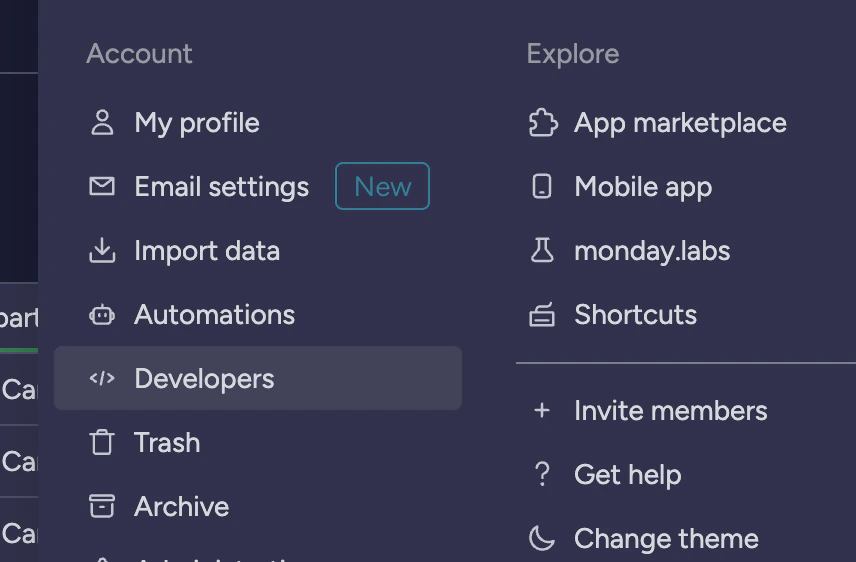
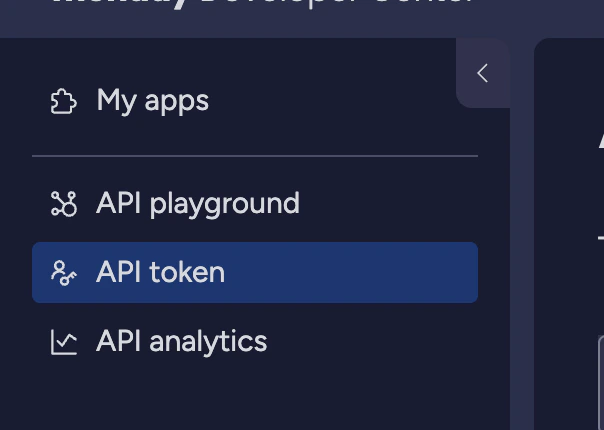
- Copy the API token
Considerations when creating the integration
Call logs are meeting dates:
Often we are using other monday CRM automation together with CallCow. Creating new fields for call log and meeting start time helps with future automations, as they provide information for creating new calendar events and alert triggers for your CRM and syncs to your CRM as the source of truth.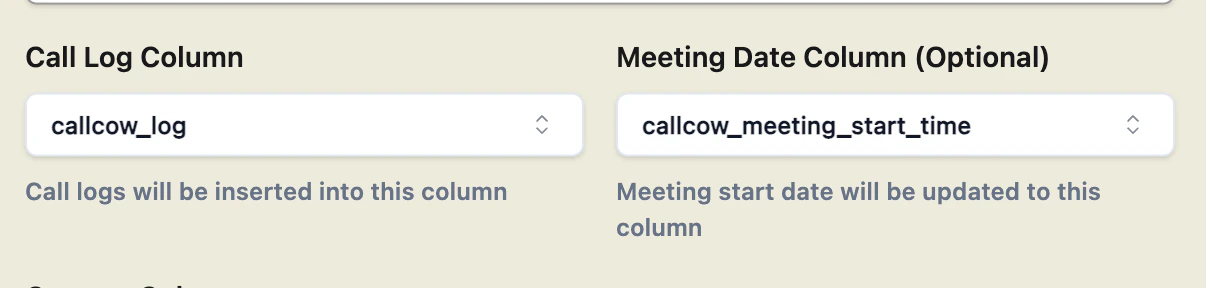
Extra call context:
It is normal to pass in extra call context to your calls. When creating your integration, add the extra context you would like to add and it will be passed to the call workflow.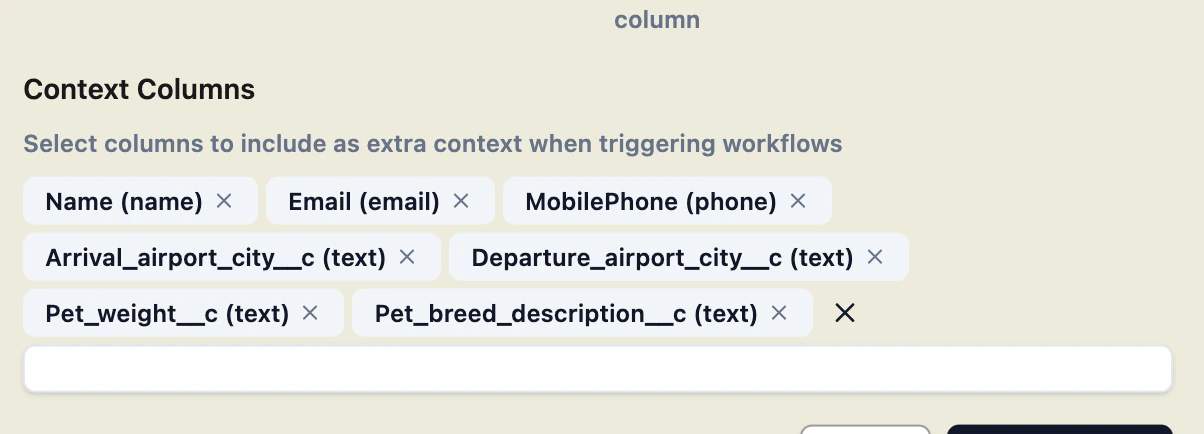
Trigger call workflow when a row is created
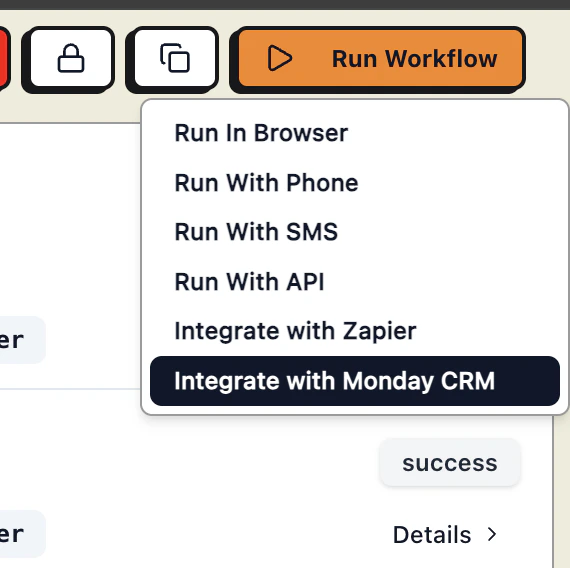
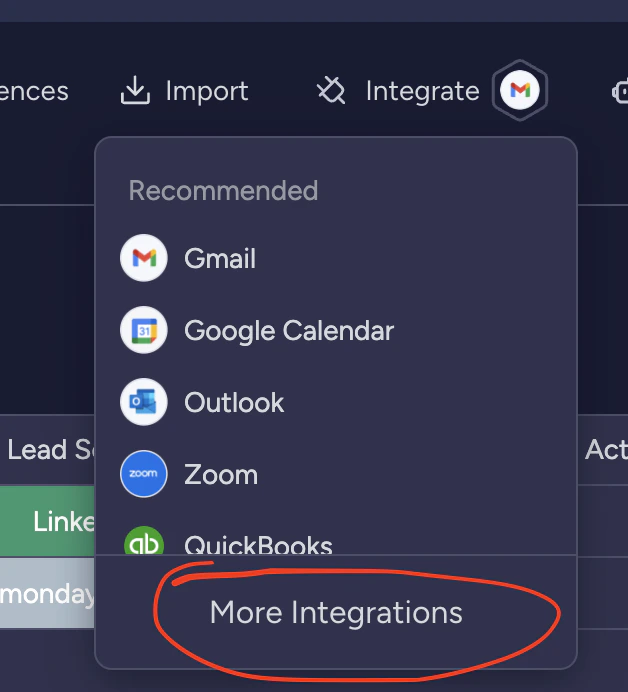
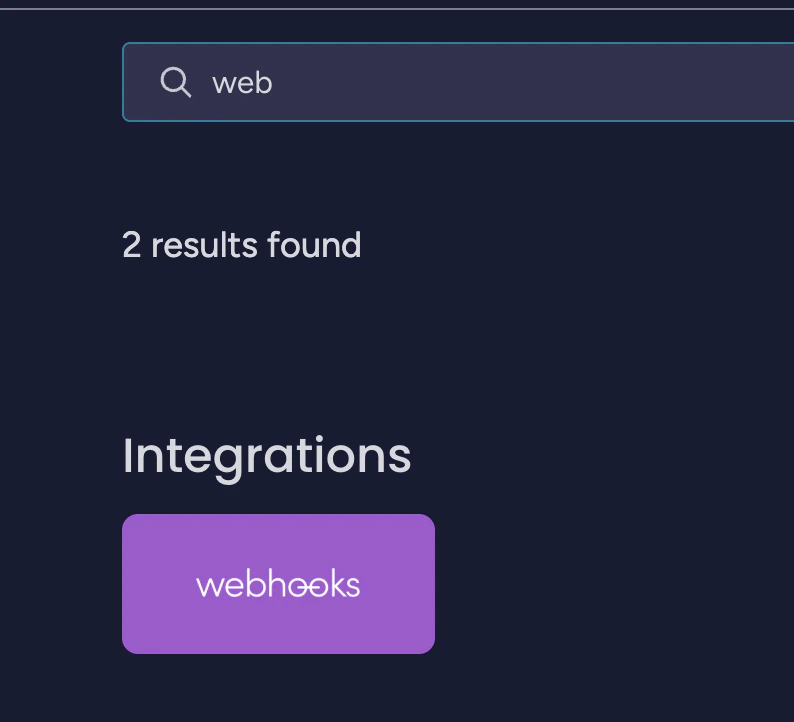
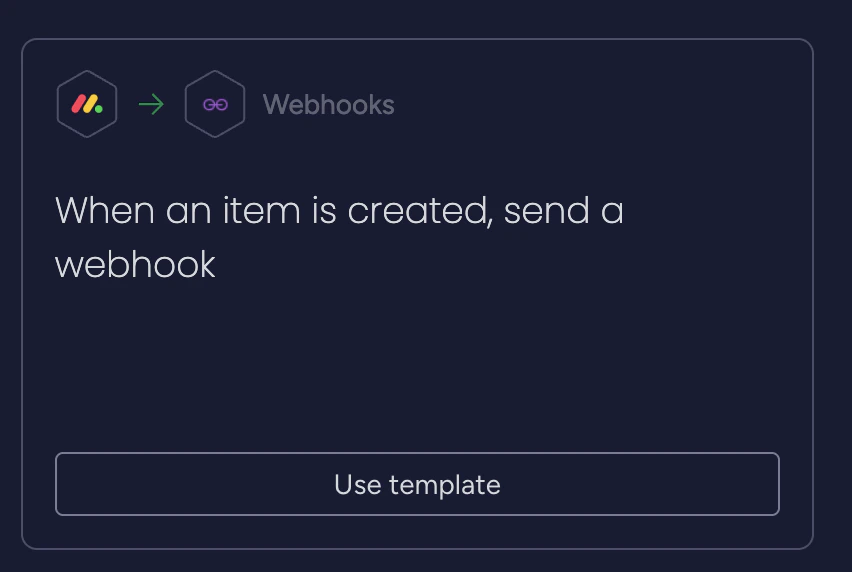
The most common way for Monday CRM integration to be used is to trigger a call when a new row is added. To do this, make sure you have first created a Monday CRM integration with the board of your choosing in the Integrations Tab. Go to Run Workflow section of the workflow you want to trigger, and copy the webhook link generated: